Data Extraction
What is data extraction?
This is where you select a huge amount of PDFs similar to the ones defined under the Models (‘Where’) tab, and where PDFZone automatically extracts the data.
How to perform data extraction?
Note: at this step, you should have defined some Fields and some Models
- Drag and Drop the PDF files you want to extract from or Click on the
 icon on the bottom-left of the window, then choose the PDF files.
 - Click on the
 icon in the toolbar on the top of the window, this will start the extraction.
Observe the results being displayed.
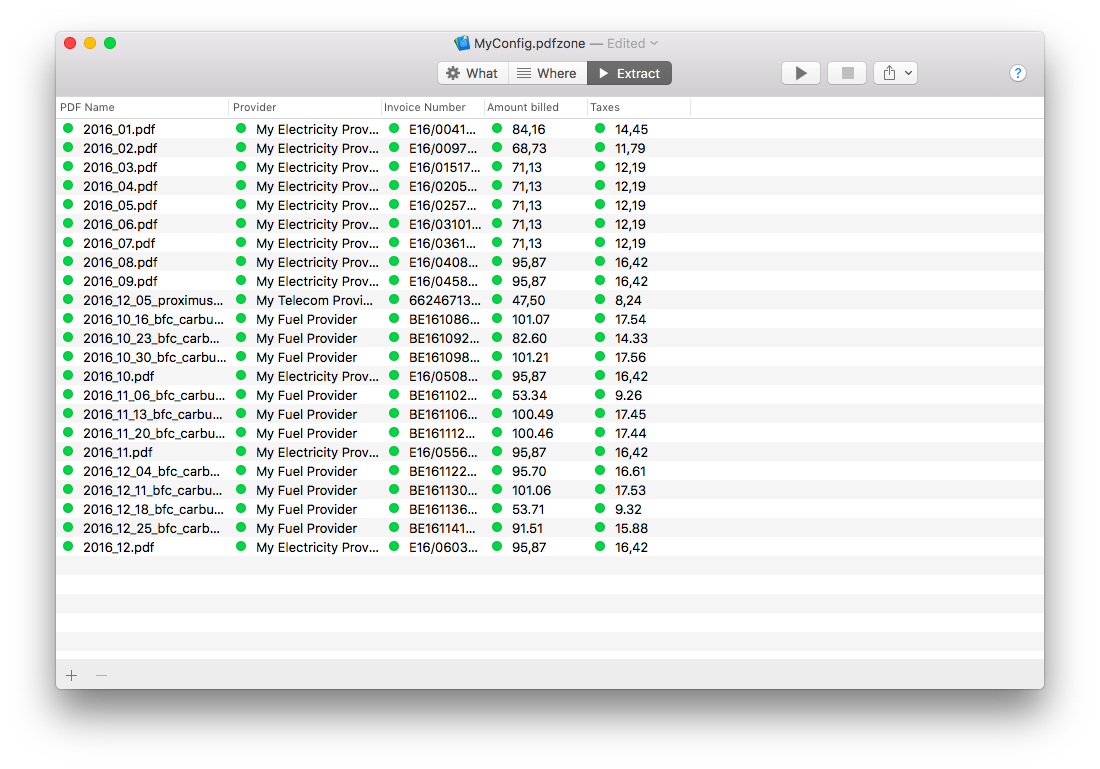 If “!! Non-OCR document !!” is displayed as Model name, this means that the PDF file is not gone through character recognition. The PDF file should go through an OCR software for PDFZone to work properly.
What now?
You can export your data by clicking on the export  icon in the toolbar on the top of the window.
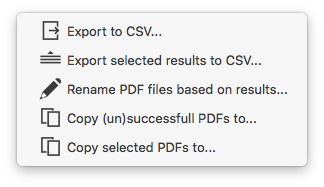
PDFZone offers you multiple choices:
icon in the toolbar on the top of the window.
PDFZone offers you multiple choices:
- Export results
- Export only the selected results: this will export the results you selected in the table. To select multiple results, press Command (⌘) and click on the results of your choice.
- Rename the source files based on results (extracted values)
- Copy files to: PDFZone will copy (not move) the PDF files where data extraction was (according to your choice) successfull/unsuccessfull/partially successfull. The destination folder will be asked to the user.
- Copy the selected files to: PDFZone will copy (not move) the selected PDF files to the destination folder chosen by the user.