Using the results
What is export?
Export means doing something with the extracted values. Currently, you can:
- Copy the extracted data to a CSV file. A CSV file is a standard format whose signification is “Comma-Separated Value”
- Rename the source PDF files according to pattern composed of extracted values (new since v2.0)
How to export?
After performing data extraction, click on the export  icon.
A menu like this will appear:
icon.
A menu like this will appear:
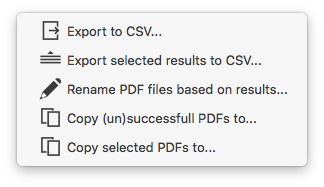
You have several possibilities:
- CSV Export: displays a window with export options
- CSV Export selected results: displays the export options for the selected rows in the results table
- Rename the results: displays the renaming options
- Copy (un)successfull PDFs: displays a window with copy options
- Copy selected PDFs: displays the copy options for the selected rows in the results table
CSV Export options
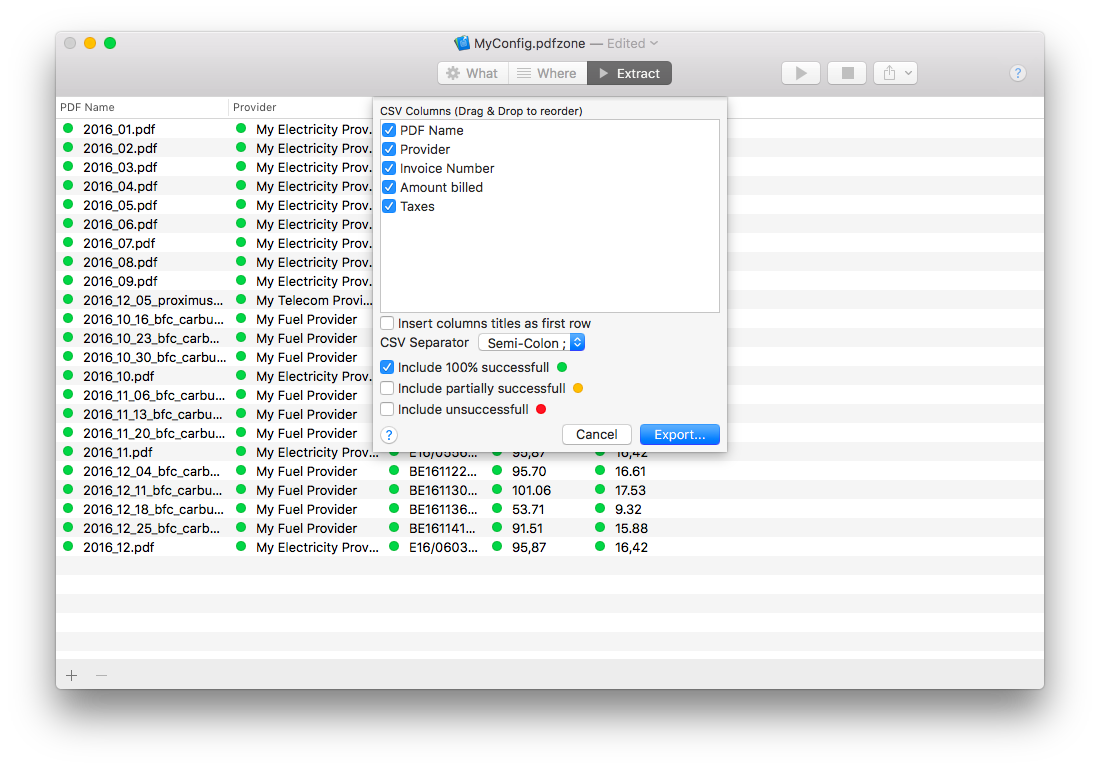
You have several possibilities:
- Choose what to export using the checkboxes
- Choose the exported columns order by performing drag and drop on the elements of the table
- Choose the separator used between the exported values. You can choose between:
- Semi-colon “;”
- Coma “,”
- Tabulation “ “
- Choose which results you want to export (multiple choices are allowed)
- 100% successfull results (all values have been retrieved)
- Partially successfull results (the Model has been recognized and zero or more values have been retrieved)
- Unsuccessfull results (the document did not match any Model)
- Specify date format (for Fields with Date type, you can choose the format of the exported date. Enter the ISO8601 format of your choice. Example: yyyy-MM-dd for a date like 2020-12-28)
Then press the Export… button and choose the name and the destination of the export file.
Note: PDFZone will remember the export options for your next export. You might need to save the configuration via the File menu if you changed these options.
Rename options
The renaming allows you to rename your files based on extracted values.
A renaming pattern has to be defined in the option window:
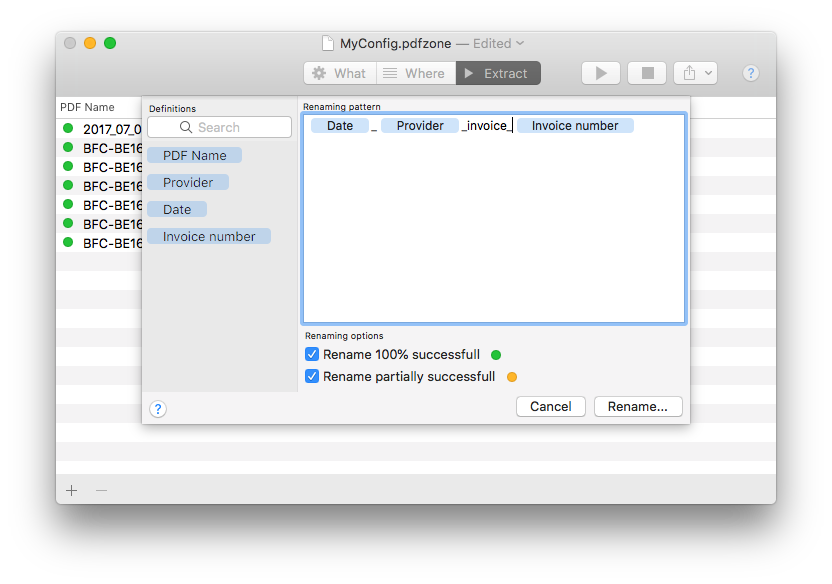 The left side panel contains a list of the Fields. Drag & Drop one or several values on the field located on the right. These fields will be automatically replaced by the corresponding extracted value.
Simple text can be added, which will obviously be constant for each file.
There are also three options:
The left side panel contains a list of the Fields. Drag & Drop one or several values on the field located on the right. These fields will be automatically replaced by the corresponding extracted value.
Simple text can be added, which will obviously be constant for each file.
There are also three options:
- Rename files where extraction was 100% successfull
- Rename files where extraction was partially successfull
- Specify date format (for Fields with Date type, you can choose the format of the exported date. Enter the ISO8601 format of your choice. Example: yyyy-MM-dd for a date like 2020-12-28)
Finally, click on the “Rename…” button, the destination directory will then be asked.
Important:
- The original file is copied and renamed, and consequently not erased
- Should a file with the same name in the destination directory, would it not be erased. The name of the copied file will be adapted (with a (1) as suffix).
- The file extension “.pdf” does not need to be entered manually in the renaming pattern. PDFZone does it automatically for you.
- Slashes / will be automatically replaced by underscores _ (default). You can change this default value via the menu PDFZone > Preferences.